
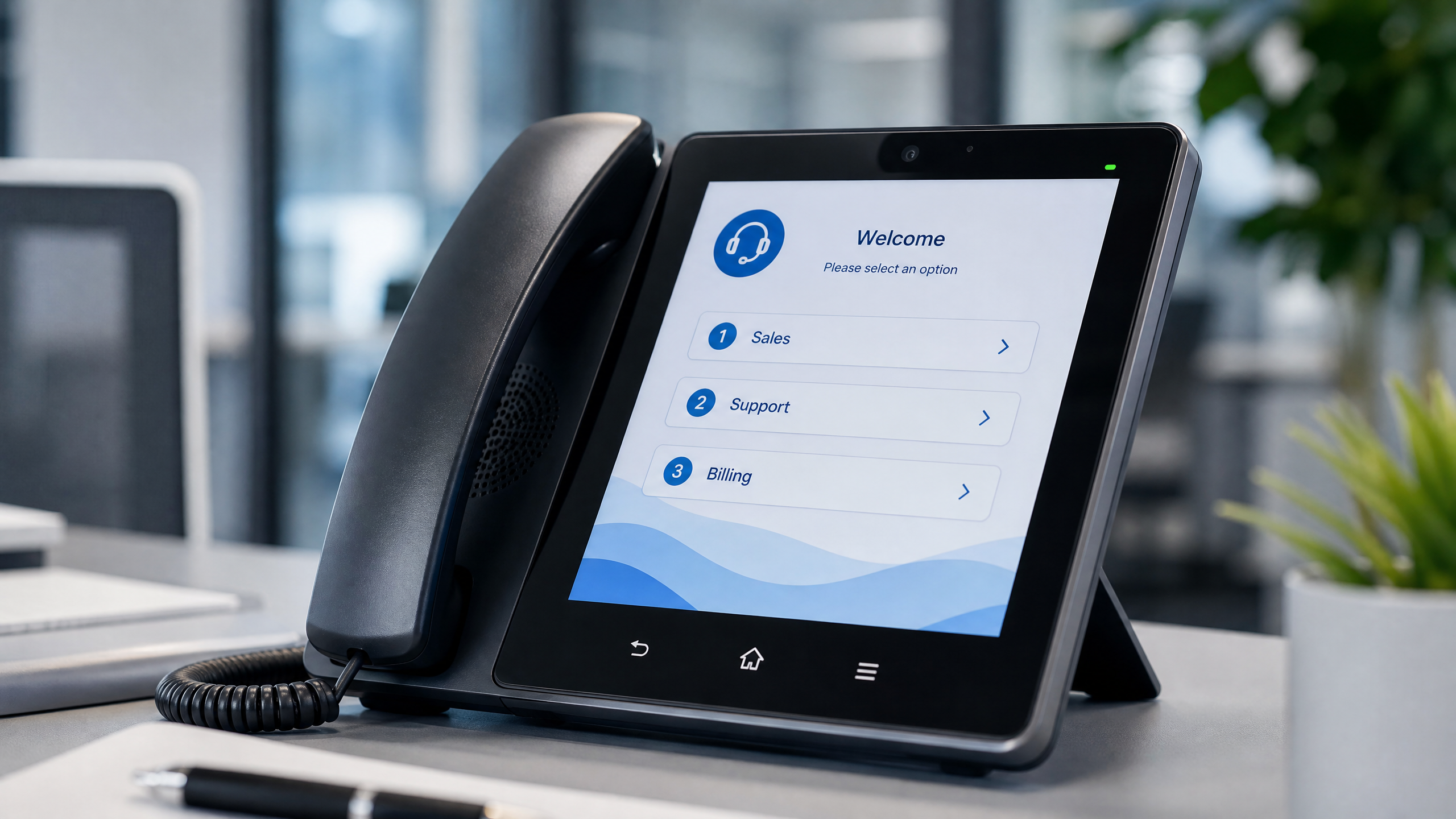
We have all been there: calling a business and getting trapped in an endless, confusing phone menu. "Press 1 for this, press 2 for that, press 9 to hear these options again..." An IVR or Auto Attendant system is meant to streamline call routing and save your staff time. However, when designed poorly, it becomes the number one source of customer frustration.
Auto Attendant vs. IVR: What's the Difference?
An Auto Attendant is a basic menu that routes calls based on keypad inputs (e.g., "Press 1 for Sales"). An IVR (Interactive Voice Response) is a more advanced system that can interact using voice recognition and database lookups. For most small businesses using a modern VoIP system like Zonitel, a well-structured Auto Attendant with multi-level menus is exactly what you need.
5 Golden Rules of IVR Menu Design
1. Keep It Short (3–4 Options Maximum)
Human memory is limited. If you give callers seven options, they will forget the first three by the time you finish speaking. Group your departments logically — instead of separate options for "Billing," "Payments," and "Invoices," consolidate them into a single "Billing" option.
2. Put the Most Popular Options First
Look at your call data. If 70% of your callers are looking for Customer Support, make that Option 1. Do not force the majority of your callers to listen to the entire menu just to reach the department they need.
3. Action First, Number Second
Say "For Sales, press 1," rather than "Press 1 for Sales." The caller is listening for their desired action. Once they hear it, they will pay attention to the number that follows.
4. Always Offer an Escape Route
Never trap a caller in a menu. Always provide an option to speak to a human operator or leave a voicemail. The industry standard is usually "Press 0 to speak to a representative."
5. Keep the Greeting Brief
Skip the long-winded promotional messages. A simple "Thank you for calling [Company Name]" is sufficient. If you must include important information like holiday hours, keep it under 10 seconds.
Sample IVR Script for a Small Business
Thank you for calling [Your Company Name]. If you know your party's extension, you may dial it at any time. For Sales or New Inquiries, press 1. For Customer Support, press 2. For Billing and Account Questions, press 3. To hear our hours and location, press 4. To speak with the operator, press 0, or stay on the line.
Setting Up Your IVR with Zonitel
With Zonitel, you don't need an IT degree to change your greetings. Use our Text-to-Speech feature to instantly generate professional-sounding greetings in English and Spanish, or upload your own audio files. You can also set up different IVR menus for business hours and after-hours, ensuring your customers always receive the right information.
Set it up in Zonitel: Help Center guides
Set Up Your Auto Attendant in Minutes
Zonitel makes it easy to build a professional IVR menu without any technical expertise. Start your free trial today.